Getting started
Five minutes to your first wiki page, and who does the ingesting
Central LLM Wiki is self-hostable knowledge-base software: import articles, papers and PDFs into your own deployment, and an AI reads them, writes interlinked wiki pages, and keeps the index and log up to date. You find sources, ask questions and judge; the bookkeeping is the AI's job. The approach comes from Andrej Karpathy's "LLM Wiki" (original), condensed on the LLM Wiki pattern page.
Five-minute start
- Get an account. On a new instance the operator creates the first Admin at
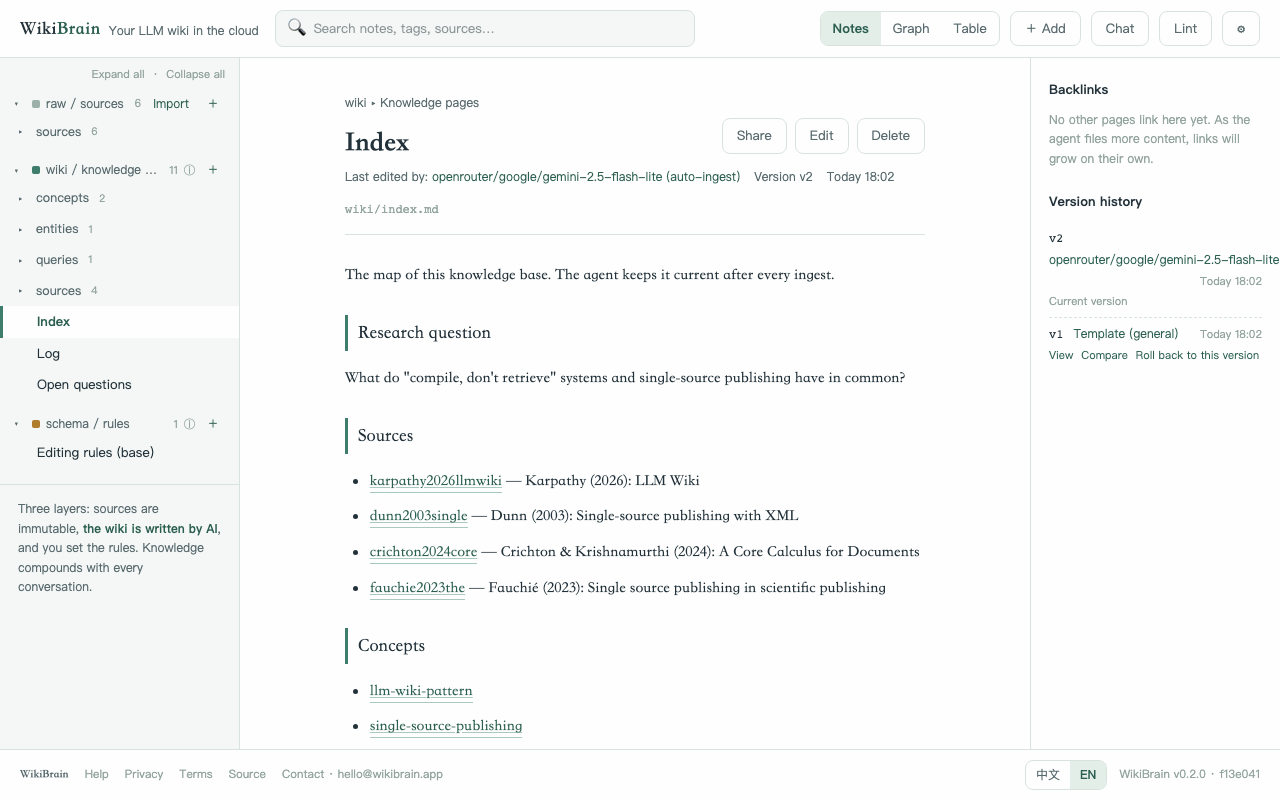
/setup(see Self-hosting); everyone else opens the invitation link an Admin sent them. There is no open sign-up. - Follow the setup wizard: Workspace → Knowledge (pick a template, General if unsure, or deliberately start empty; create a project if you need one) → MCP access (create a read-only Reader credential and copy the configuration into your agent) → Agent skills (optional downloads). The template creates the schema/ rules, wiki/index.md and wiki/log.md that agents retrieve with get_instructions.
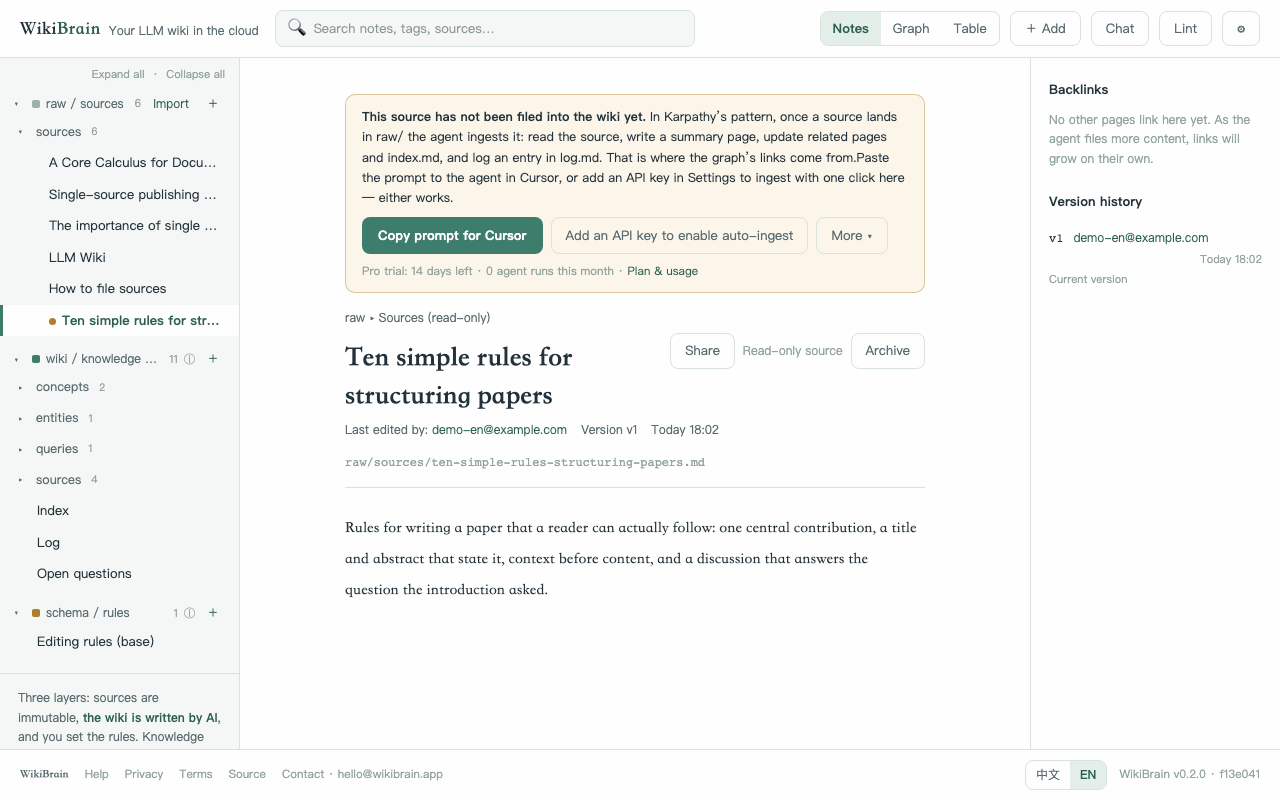
- Press + Add in the top bar → Paste URL and paste a link, or Upload file and drop a PDF. It lands in raw/ and the page shows the banner "This source has not been filed into the wiki yet."
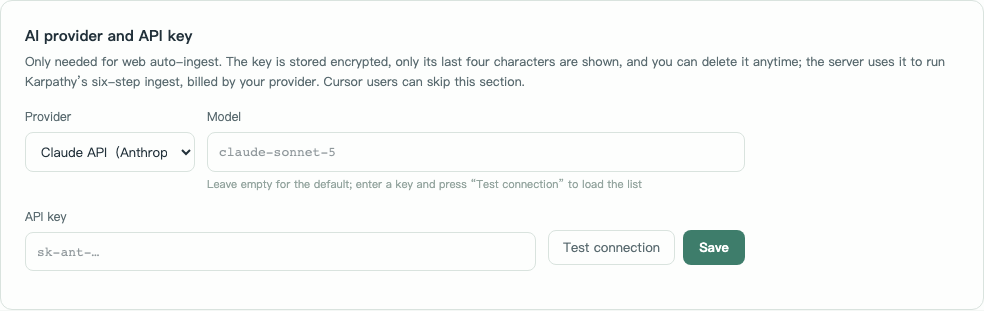
- Press Copy prompt for remote agent in the banner and paste it into an agent connected with a Librarian credential, for example Cursor or Claude Code. Without a remote agent, Auto-ingest locally (optional) runs the same job in the browser once a model provider key is configured in Settings.
- After the run (usually 30 to 90 seconds) the left pane gains a summary page under wiki/, and index.md and log.md are updated. Read it and check the key points, then ask your agent, or Chat in the top bar, something like "what is the main argument of this paper?". The answer cites page paths.
Who works with the wiki: three ways, pick one or combine
The agent needs a model to run on. Connected remote agents are the main path; the local AI in the browser is optional. Settings → Connect an agent prepares the MCP endpoint and credentials.
https://orakel.marcobartsch.de/mcp into its connector settings, sign in and press Allow. OAuth connections are read-only: good for questions and research, not for ingest. Steps below.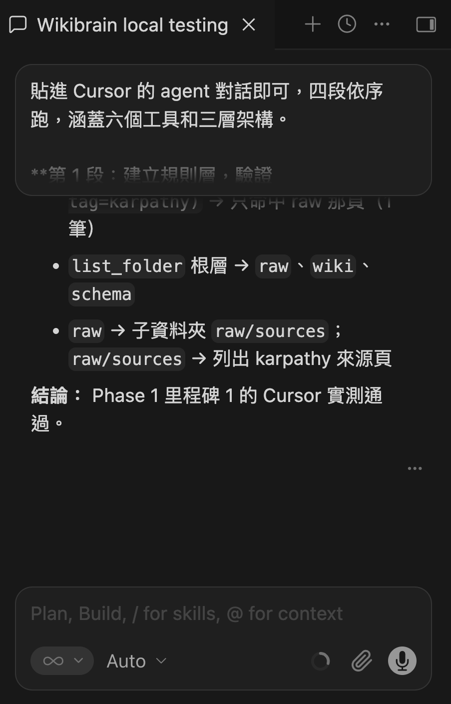
Connect from Claude.ai or ChatGPT (connectors)
- Claude.ai: sidebar Customize → Connectors → Add (top right) → Custom connector → name it Central LLM Wiki, paste
https://orakel.marcobartsch.de/mcp→ Add. The first time you are sent to Central LLM Wiki’s sign-in and consent page; press Allow. The connector lists the tools available to that credential. OAuth connections always get read-only Reader access. - ChatGPT: Settings → Connectors → Advanced / Developer mode → Create → paste the same URL as the server URL, choose OAuth → Create. Custom MCP is available on some plans only.
- Once connected, use the project-selection workflow below before asking the agent to read or write wiki content.
Start by resolving the destination before any content call. Whenever task context includes a Multica project ID, call resolve_multica_project with that exact ID first and use the returned project_key, even if a canonical project_key is also supplied. If a separately supplied canonical project_key differs from the returned key, stop and ask for clarification before calling get_instructions or any content tool. Also stop if supplied title or project kind conflicts with the resolved row. Only when no Multica project ID is present may you use a canonical project_key supplied by trusted task context. Use list_projects to discover active destinations visible to this credential and check can_read or can_write. With title-only context, proceed only when exactly one active authorized row has that exact display name and any supplied project kind matches. If the match or needed access is missing or ambiguous, ask for the canonical key, an administrator-maintained mapping, or access. Descriptions and repository URLs are not mapping evidence; do not guess a key or slug. General has separate capability flags and is never a fallback. Then call get_instructions with the explicit key before other content operations and pass that same key on every later content call; use null only when General was explicitly selected.


Authorised connections appear under Settings → Connect an agent → MCP credentials and OAuth sessions and can be revoked at any time; access tokens expire after 24 hours and clients renew for 90 days. Writing needs a separate Librarian credential. Bearer tokens also work as API keys for the REST API, see the guide.
Phone: add to home screen
Central LLM Wiki is an installable web app (PWA); there is nothing to download from a store. iPhone: open https://orakel.marcobartsch.de in Safari → Share → Add to Home Screen. Android: Chrome menu → Install app or Add to Home screen. It then opens full-screen with its own icon. When the connection drops you get an offline page; the knowledge base itself is not available offline.